
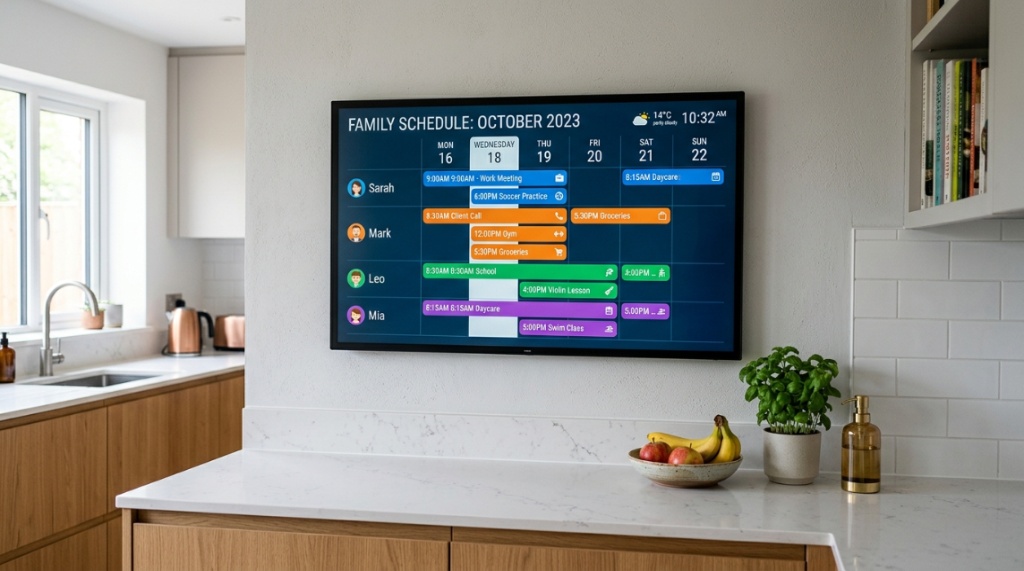
You’re tired of missed appointments, scribbled notes that get lost, and the chaos of syncing five different family schedules. You need a central command center for your time, but you’re convinced a large touchscreen calendar will break the bank. The good news? You’re wrong. The market has evolved, and finding a large touchscreen calendar under $200 is not only possible, it’s a smart investment that pays for itself in saved time and reduced stress. This guide cuts through the noise, showing you exactly what to look for, which features matter (and which are just marketing fluff), and how to choose the perfect digital hub for your home or office without sacrificing your budget.
What Defines a “Large” Touchscreen Calendar for Your Budget?
A “large” touchscreen calendar in the under-$200 category typically means a display between 10 and 15 inches. This is the sweet spot for viewing an entire month at a glance without squinting, while still keeping costs manageable. We’re not talking about massive 24-inch wall-mounted boards here; that’s a premium price tier. Instead, you’re looking at a device that sits perfectly on a desk, kitchen counter, or mounts on a wall, offering a clear, interactive view of your schedule.
The Display Size Sweet Spot: 10 to 15 Inches
Why not 7 inches? It’s too small for a true “at-a-glance” month view. Why not 20 inches? That’s where prices skyrocket. The 10-to-15-inch range dominates this budget segment, offering a large enough canvas to see appointments, to-dos, and weather widgets clearly from across a room. Look for a resolution of at least 1280 x 800; anything less will look pixelated and cheap.
Touchscreen Technology: Capacitive vs. Resistive
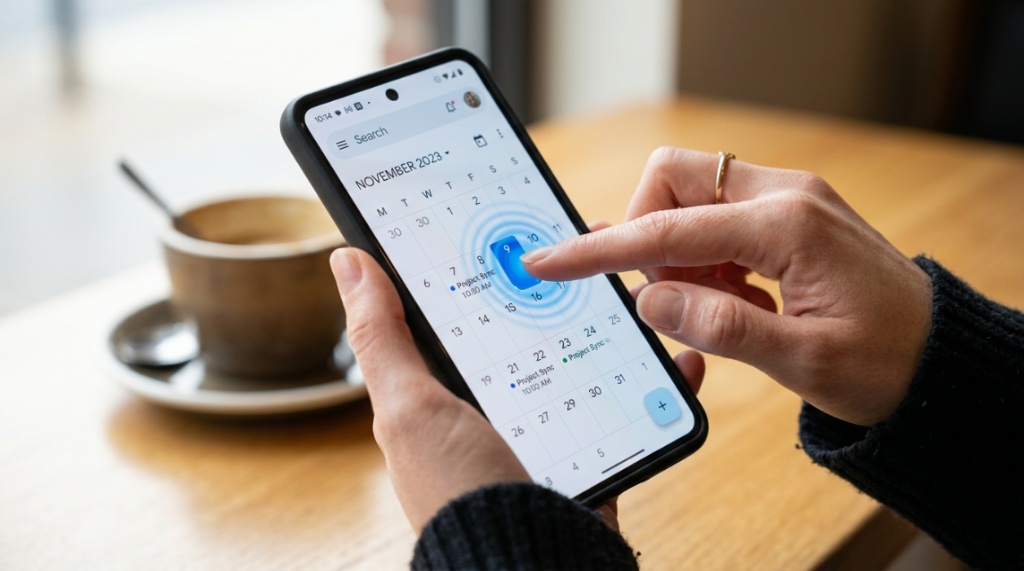
This is critical. You want capacitive touchscreen technology, which is the same tech used in smartphones. It responds to the light touch of a finger and supports multi-touch gestures like pinch-to-zoom. Avoid resistive screens, which require a hard stylus press and feel outdated. For under $200, you can absolutely get a high-quality capacitive screen.
Why Choose a Dedicated Calendar Over a Tablet with an App?
You could buy a cheap Android tablet and load a calendar app, right? Yes, but a dedicated digital calendar is purpose-built for this job, and there are three major advantages. A dedicated device offers a persistently-on display, simplified user interface, and often includes a wall-mounting kit, making it a seamless, appliance-like part of your room. A tablet is a general-purpose device with distractions—games, emails, and notifications—that pull you away from your schedule.
Zero Distraction Environment
This is the primary benefit. A dedicated calendar does one thing: shows your schedule. You won’t get tempted by a YouTube notification or a new game. This focus ensures the calendar becomes a reliable reference point, not just another digital toy. It’s about creating a calm, organized environment.
Always-On Display and Standby Efficiency
Most dedicated calendars are designed to be plugged in 24/7, with a screen that stays lit like a digital photo frame. This “always-on” nature means you can glance at it as you walk by, without having to press a button to wake it up. This immediate accessibility is a game-changer for family routines and office traffic.
How to Verify Compatibility with Google Calendar and Apple Calendar
The core function is syncing. Most devices in this budget use an Android-based OS and work natively with Google Calendar. For Apple users, compatibility is not built-in but is often achieved via CalDAV protocol. You must check the product description for “CalDAV support” if you’re an iPhone-only household. Let’s break down what to look for.
Native Google Calendar Integration
If you and your family live in the Google ecosystem (Gmail, Android phones), this is your easiest path. The device will ask for your Google account login during setup, and within minutes, your events, reminders, and shared family calendars will appear in full color. Look for this specific phrase: “Google Calendar pre-installed.”
CalDAV and Apple Calendar Workarounds
Don’t panic if you’re an Apple household. You need a device that supports CalDAV (an open standard for calendar syncing). You’ll need to log into your iCloud account settings within the calendar app and manually enter your iCloud CalDAV server information. It’s a one-time 10-minute setup. Products explicitly stating “Supports Google, Outlook, and CalDAV” are your safest bets.
Can You Find a Large Touchscreen Calendar Under $200 with Good Reviews?
Absolutely, and the reviews back it up. Over the last two years, several Chinese manufacturers have entered the space with high-quality devices that offer exceptional value. The key is to look for models with consistent 4-star ratings on Amazon, focusing on long-term user feedback regarding screen durability and software stability. You don’t need to buy the cheapest option; aim for a mid-range price of $150–$199 to ensure you get a robust build.
Key Indicators of a Reliable Device (Pros and Cons)
Let’s look at what reviewers consistently mention:
- Pros: ease of setup, bright screens, and reliable Google sync.
- Cons: occasional sluggishness when scrolling through large event lists, and speakers that are adequate but not great for alarms.
A specific model range to look for includes the 2023 or 2024 releases from brands like JYXOEM or 12-Inch digital picture frames with calendar functions from companies like Moodti. Read reviews specifically for “calendar sync” and “screen responsiveness.”
Which Features Are Essential vs. Nice-to-Have on a Budget?
Staying under $200 requires focus. You can’t have everything—like 4K resolution and wireless charging—but you can have a highly functional device. Let’s separate the must-haves from the “skip it” features.
Essential Features to Prioritize
Your “must-have” list should be short: a capacitive touchscreen, Wi-Fi connectivity, native Google Calendar (or CalDAV) support, and a bright enough display (300+ nits) for daytime viewing. If a device misses any of these four, move on.
Features You Can Safely Skip
Don’t pay extra for built-in voice assistants like Alexa or Google Assistant—they’re often clunky on these budget chipsets. Skip models with expensive auto-rotating stands unless you know you need them. And ignore internal 64GB storage claims; you don’t need that for a calendar. Your data lives in the cloud.
Is a 10-Inch Screen Large Enough for a Family?
Yes, a 10-inch screen is perfectly adequate for a small family of four. At that size, you can see a full month, with colors distinguishing each family member’s events. You won’t be able to read every detail from across the room, but from 3-4 feet away, it’s perfectly legible. The secret is using the “Schedule” view rather than the “Month” view for daily details.
Optimizing Family Calendar Views
Most apps allow you to set a color for each calendar (Mom, Dad, Kids). This visual segregation makes it incredibly easy to spot conflicts—like when two kids have soccer at the same time—even on a smaller screen. Set the default view to a weekly agenda to maximize readability on the 10-inch display.
Placement and Viewing Distance
Place the device in a high-traffic area like the kitchen or living room entryway. The benefit of the large touchscreen is the glanceable information. If it’s placed too far away (more than 10 feet), consider the larger 12-inch model. But for most homes, a 10-inch on the counter is perfect.
When Is the Right Time to Buy to Get the Lowest Price?
Pricing fluctuates, but there are specific seasons to buy. Amazon Prime Day (October) and Black Friday (late November) are the absolute best times to save 20-30% off these models. However, new models are typically released in January, so you might find “last year’s model” at steep discounts in February and March.
Price Tracking Strategies
Use a tool like CamelCamelCamel to track price history on Amazon. Set a price alert for $50 off the list price. This way, you don’t have to obsessively refresh pages. Remember, the $200 limit is about value, not just the initial sticker price.
Refurbished vs. New Warranty Considerations
A refurbished model can be a steal, often at $120–$150. However, ensure it comes with a 90-day seller warranty. There is a risk of battery degradation, but since you’ll have it plugged in 24/7, battery health is less critical. If you buy new, you get a standard 1-year warranty, which is nice for peace of mind.
How to Set Up Your Budget Touchscreen Calendar in 5 Easy Steps
You’ve bought the device? Great. Here’s how to get it running without the frustration. The setup process is remarkably straightforward if you follow this sequence. You’ll be synced in under twenty minutes.
Step-by-Step Setup Guide
- Power Up: Plug in the device and let it fully boot up.
- Connect Wi-Fi: Navigate to the “Settings” app and connect to your 2.4GHz Wi-Fi network (some devices struggle with 5GHz).
- Install Calendar App: If not preloaded, go to the Play Store and download “Google Calendar” or the specific app the manual suggests.
- Sign In: Enter your Google Account credentials. If prompted for permissions, grant “Calendar” access.
- Customize Display: Go to “Display Settings” and set the screen to “Always On” and adjust the sleep timer to “Never” to keep the calendar perpetual.
What Are the Best Mounting Options for a Small Office or Kitchen?
Mounting is crucial for aesthetics. Most devices come with a basic plastic stand, but for a clean look, you’ll want to mount it flush to the wall. A strong VESA adapter or heavy-duty adhesive strips (like Command Strips) rated for 10 lbs will work perfectly.
Safety and Tilt Considerations
When mounting on a wall, ensure it’s at eye level—generally 60 inches from the floor to the center of the screen. Angle the screen downwards slightly (15-20 degrees) with a wall mount if you want to see it while standing, or flush vertically if you’re mostly sitting nearby. Always mount away from direct sunlight to prevent glare and overheating.
Desk Stands vs. Wall Mounts
For a desk, the included stand is fine. For a kitchen, a wall mount looks cleaner. Just make sure your mount is compatible with the VESA pattern on the back of your specific device—100x100mm is the standard for these 10-inch models.
Can You View Multiple Time Zones or Different Calendars at Once?
Yes, and this is a critical feature for remote teams or families in different locations. The Google Calendar app on these devices allows you to toggle multiple calendars on/off. You can check the box for “Work” and “Home” simultaneously, and they will overlay each other in different colors, allowing you to spot conflicts instantly.
Managing Multiple Calendar Visibility
In the app’s settings, under “Calendar,” you’ll see a list of linked accounts. You can tap each one to enable or disable it. For a digital calendar in a home office, you might have a “Work” calendar and a “Personal” calendar. By turning both on, you’ll see a combined view where work appointments appear in blue and personal ones in green.
The Ultimate For large touchscreen calendar under $200 Buyers
When you’re ready to browse, focus on those that explicitly mention “multi-calendar” support. It’s a software feature that works flawlessly on these budget devices, as long as you have a stable internet connection. This capability transforms a simple family organizer into a serious productivity tool.
Pros and Cons of Low-Cost Android-Based Calendars
Understanding the ecosystem is key to satisfaction. Most budget-friendly digital calendars run on a stripped-down version of Android. This offers incredible flexibility but comes with a trade-off. You are getting a mini-computer, not a purpose-built appliance. Here’s the honest breakdown.
The Advantages: Flexibility and Customization
You can install any calendar app from the Play Store, such as One Calendar or Business Calendar 2. You can even sideload APK files for specialized apps. This means you’re not locked into a proprietary app like some expensive brands (e.g., Lenovo or Amazon). The hardware is generic, but the software is free.
The Disadvantages: Occasional Updates and Bloatware
The downsides include occasional OS update prompts that can disrupt the “always-on” display. Some models come with pre-installed bloatware (unnecessary apps) that you cannot uninstall, which takes up memory. Also, they can be slow to boot if you ever unplug them, with a boot time of 30-45 seconds.
Frequently Asked Questions
Are these touchscreen calendars secure?
Yes, as long as you keep the default Android security patches updated and don’t download unverified third-party apps onto the device. These devices don’t handle sensitive banking transactions, so standard security is sufficient.
Can I use it as a digital photo frame when not in use?
Definitely. Most models include a built-in slideshow screen saver. You can upload photos to it via a microSD card or cloud drive, and when there are no calendar events, it will display your chosen photos with a widget clock in the corner.
Will it work if my internet is down?
The calendar will function, but sync will pause. You will see cached events that were last downloaded. Once Wi-Fi reconnects, it will automatically sync the new events. It is not a fully offline device unless you manually add events to it locally, which is unnecessary.
Does it have a speaker for audible reminders?
Yes, it has a small speaker. It is loud enough to hear in a quiet room, but not a substitute for a smart speaker if you want loud alarms. You can adjust the volume in the OS settings, but high volume might distort the sound slightly.
What is the lifespan of this device?
Expect a lifespan of 3-5 years with continuous 24/7 use. The screen is the most durable component. The internal battery will degrade, but since most users keep it plugged in, this isn’t a major issue. Keep the OS updated to maintain app compatibility.
Conclusion: Your Path to an Organized, Under-$200 Solution
You don’t need to spend a fortune to reclaim your schedule. Finding a large touchscreen calendar under $200 boils down to prioritizing a capacitive touchscreen, solid system support, and 10-12 inches of ideal display space. You’ve learned what to ignore, what to prioritize for your family or office, and how to set it up in minutes without a manual. Now, the power is in your hands. Take the leap, declutter your physical notice board, and let a simple digital screen handle the mental load of your schedule. Your future, perfectly synced self will thank you for making the switch today.